

Install Qispi Host on the Mac
Qispi Host is the part that runs on the Mac you want to use. Install it once; it then keeps itself up to date.
Download and open it
Section titled “Download and open it”-
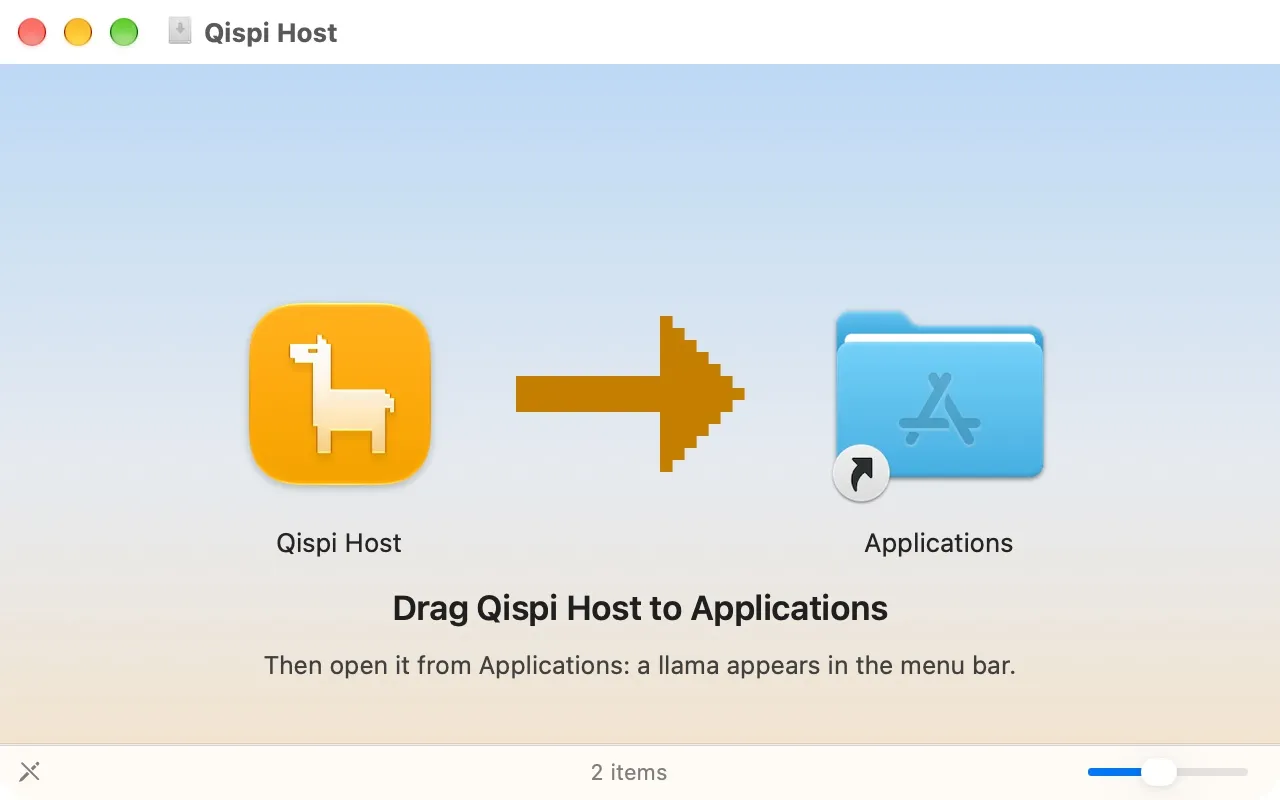
Open the downloaded Qispi-Host.dmg. In the window that opens, drag Qispi Host onto the Applications folder next to it.
-
Open Qispi Host from your Applications folder. (You can then eject the Qispi Host disk in the Finder’s sidebar, and delete the download.)
-
Once it’s open, a small llama appears in the menu bar, at the top right of the screen. That’s Qispi Host: click it for its menu.
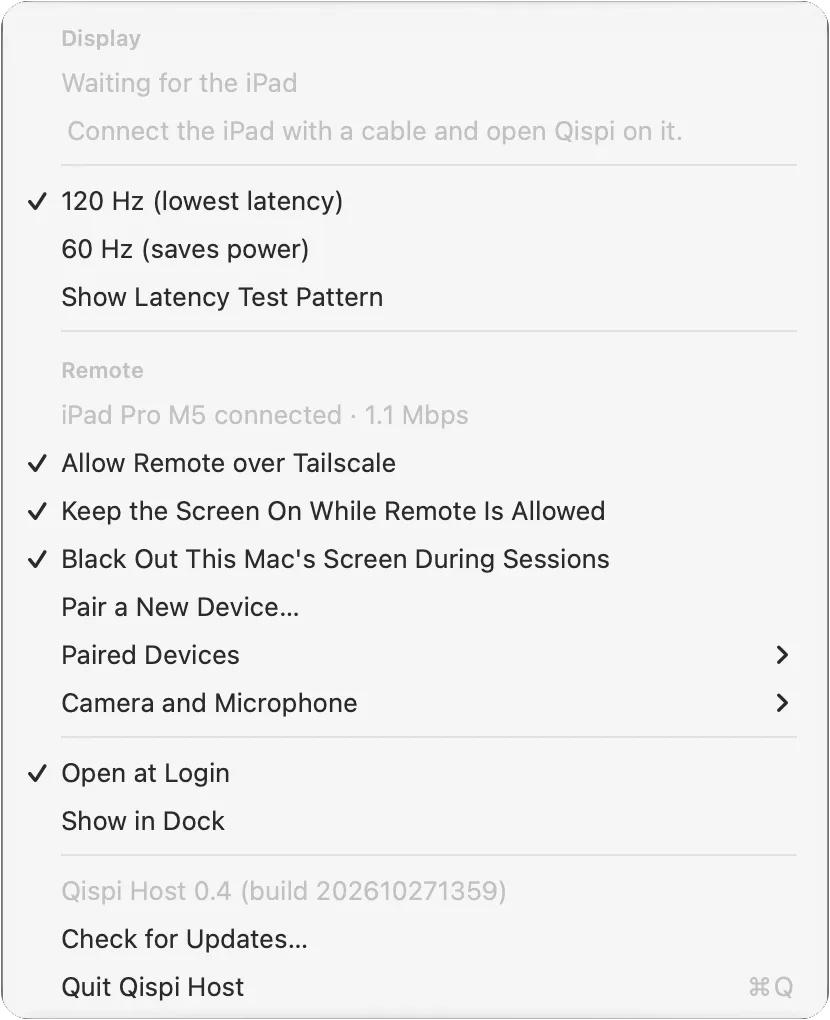
Qispi Host starts by itself each time you log in, and starts again if it ever stops unexpectedly. To stop it, choose Quit Qispi Host from its menu.
Allow what it needs
Section titled “Allow what it needs”macOS asks you to allow two things, once. Qispi Host can’t work without them.
- Screen & System Audio Recording, so it can show your screen (and play your Mac’s sound on your iPad). In System Settings › Privacy & Security › Screen & System Audio Recording, turn on Qispi Host.
- Accessibility, so your touches, clicks and keys reach your Mac. In System Settings › Privacy & Security › Accessibility, turn on Qispi Host. Its menu offers Allow Control in Accessibility… until it’s allowed.
While something is missing, the llama in the menu bar is faded, and holding the pointer over it says what.
Updates
Section titled “Updates”Qispi Host checks for a new version every few hours, downloads it quietly, and installs it while nobody is connected. You can also choose Check for Updates… from its menu, or update it from your iPad: Settings › This Mac.
Qispi is made by Atacama Labs.Questions, ideas, problems: [email protected]· Privacy